
Images
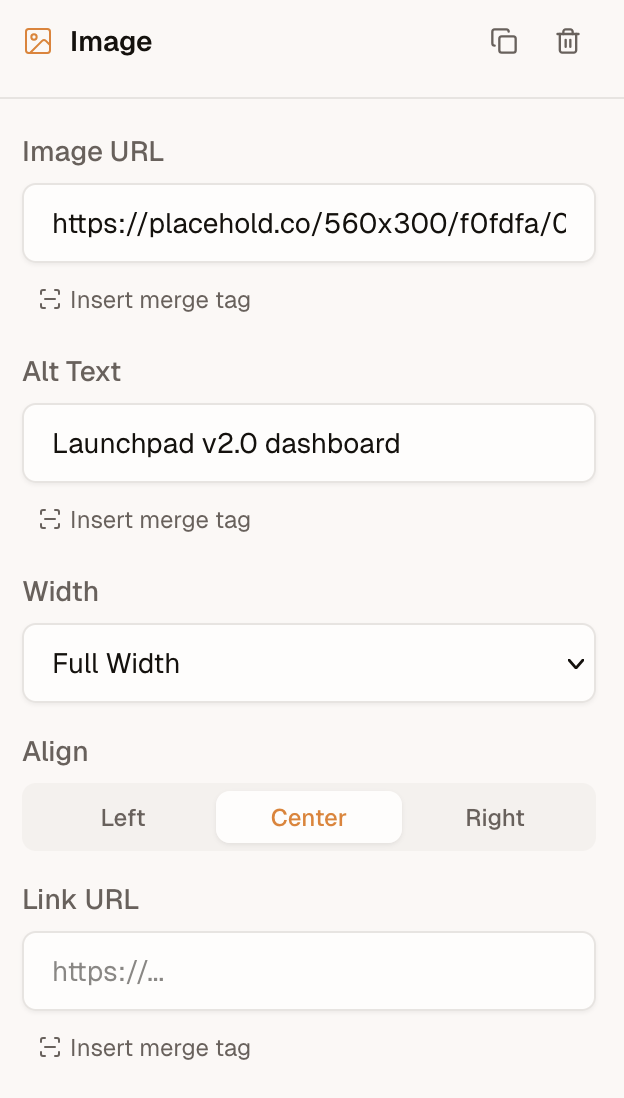
When a user adds an image block, the editor shows a text field where they can paste an image URL. The image block toolbar exposes fields for src, alt, width, align, and an optional linkUrl.
Custom Media Picker
When the onRequestMedia callback is provided, a browse button appears alongside the URL input.
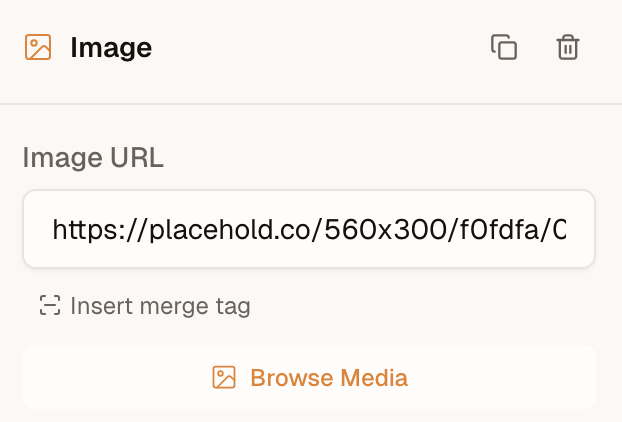
The editor calls this function whenever the user clicks the button. Return a MediaResult object, or null if the user cancels. When alt is provided, the editor automatically fills in the image's alt text.
import { init } from '@templatical/editor';

const editor = await init({
  container: '#editor',
  async onRequestMedia() {
    // Open your own modal, file browser, or asset manager
    const image = await openMyMediaModal();
    if (!image) return null;

    return { url: image.url, alt: image.alt };
  },
});
The type signature:
interface MediaResult {
  url: string;
  alt?: string;
}

interface MediaRequestContext {
  /** Media categories the editor is asking for (e.g. `['images']`). */
  accept?: MediaCategory[];
  /**
   * Files dragged directly onto an image block or field. Present only for
   * drag-and-drop requests; absent when the user clicks "Browse Media".
   */
  files?: File[];
}

onRequestMedia?: (context?: MediaRequestContext) => Promise<MediaResult | null>;
Drag and drop to upload
Users can drag an image file from their computer straight onto an image block (empty or filled), the sidebar image field, or a custom block's image field. When they do, the editor calls the same onRequestMedia handler — but with the dropped file in context.files:
const editor = await init({
  container: '#editor',
  async onRequestMedia(context) {
    // A file was dropped — upload it and return its hosted URL.
    if (context?.files?.length) {
      const url = await uploadToMyBackend(context.files[0]);
      return { url };
    }

    // No file — the user clicked "Browse Media". Open your picker.
    const image = await openMyMediaModal();
    return image ? { url: image.url, alt: image.alt } : null;
  },
});
The editor never uploads anything itself — it hands you the File and uses whatever URL you return, exactly like the Browse Media path. A few notes:
- One file per drop.
filesis an array for forward-compatibility, but the editor currently sends a single file (files[0]). - Images only. The editor pre-filters dropped files to image MIME types before calling you.
- No handler, no drop. If
onRequestMediaisn't provided, the drop affordance doesn't appear and drops are ignored. - Don't return a
blob:URL.URL.createObjectURL(file)is session-local and breaks export. Upload the file and return a durable URL (or adata:URL).
For Cloud editors, dropped files upload to your Templatical media library automatically — no onRequestMedia needed (a custom handler still takes precedence).
Display-only URL resolution
Some integrations store canonical image references that aren't directly displayable — for example, an offline-capable app whose templates reference images by plain file name (logo.png), displayable only via ephemeral blob: URLs created from local storage. onRequestMedia covers the media-browser path, but when a user types or pastes such a value into the src input, the canvas has nothing to show.
The resolveImageUrl callback closes that gap. It maps a src value to a preview URL for the canvas only — the content model keeps the canonical value, and toMjml() exports it untouched:
const editor = await init({
  container: '#editor',
  async resolveImageUrl(src) {
    const file = await myFileStore.lookup(src);
    return file ? URL.createObjectURL(file) : null;
  },
});
The type signature:
resolveImageUrl?: (src: string) => string | null | Promise<string | null>;Return the preview URL, or null (or the input value) to use the src as-is.
How the editor calls it:
- Once per committed value. Typing in the src input is debounced, so partial values (
lo,logo.p, …) never reach your resolver. - Cached per src for the editor instance's lifetime — the same src in several blocks resolves once.
- Failures fall back gracefully. A thrown error or rejected promise is cached as "use as-is"; the editor won't retry the same src. Note this also holds for transient failures: a src that failed to resolve stays unresolved until the editor is re-initialized. A hook to re-trigger resolution may be added in a future release.
- Merge-tag srcs are skipped. A src like
{{product.image}}is never passed to the resolver; itsplaceholderUrl(if set) is resolved instead. - Video thumbnails are covered too. An explicit video
thumbnailUrl(and a video block'splaceholderUrl) resolves the same way. Thumbnails auto-derived from a YouTube/Vimeo URL are already real URLs and are never passed to the resolver. - Display-only, by design. Unlike returning a
blob:URL fromonRequestMedia(which would end up in the export — see above), a URL fromresolveImageUrlnever enters the template content.
Image Block Properties
The ImageBlock type defines all configurable properties:
| Property | Type | Description |
|---|---|---|
src | string | Image source URL |
alt | string | Alt text for accessibility |
width | number | 'full' | Image width in pixels, or 'full' for 100% |
align | 'left' | 'center' | 'right' | Horizontal alignment |
linkUrl | string (optional) | Wraps the image in a link |
linkOpenInNewTab | boolean (optional) | Opens the link in a new tab |
placeholderUrl | string (optional) | Design-time preview image when src uses a merge tag |
Placeholder URL
When the src field contains a merge tag (e.g., {{product.image}}), the actual image won't render in the editor. Use placeholderUrl to provide a placeholder image in the editor. This value is not included in the exported output.
Best practices
- Use absolute URLs -- Relative paths won't resolve in email clients. Always use
https://URLs. - Prefer PNG or JPG -- SVG and WebP have limited email client support. Use PNG for graphics with transparency, JPG for photos.
- Keep file sizes reasonable -- Large images slow down loading for recipients.
- Always set alt text -- Many email clients (especially Outlook) block images by default. Recipients see the alt text until they choose to load images.
- Set explicit width -- Email clients may render images at their native size if no width is specified, breaking your layout on small screens.